How to Actually Reach Inbox Zero in Gmail
And Keep It That Way
A system that works — without third-party inbox managers, expensive apps, or starting over.
Why inbox zero keeps failing
Most people assume inbox zero is a discipline problem. You just need to be more consistent, more organized, more willing to sit down and actually deal with it. That framing puts the blame in the wrong place.
The real culprit is Gmail's interface. Before you process a single email, you've already absorbed the unread count in the browser tab, scanned three Promotions tab notifications, noticed the Social tab badge, registered the Meet button in the corner, and felt the quiet pressure of whatever Google Chat message has gone unanswered since yesterday. That's genuine cognitive load — and it compounds every time you open your inbox.
Inbox zero fails not because of willpower, but because the environment creates friction faster than the system can relieve it. Fix the environment first, and the rest gets much easier. Here's how to do both.
Step one: the one-time reset
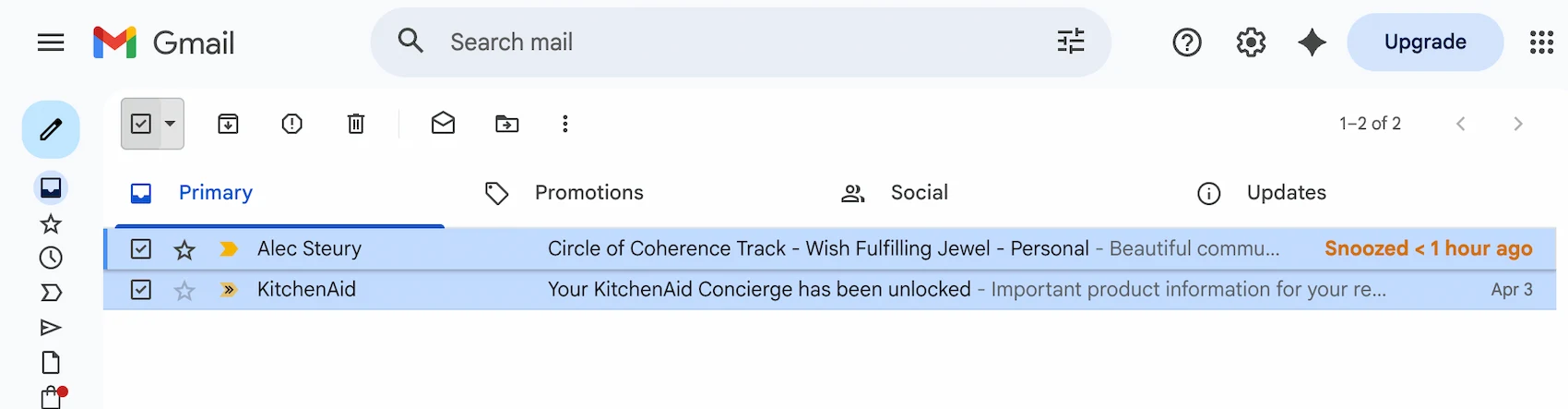
Before any system can take hold, you need a clean slate. This means archiving everything currently in your inbox — all of it, at once. People hesitate at this step. They shouldn't.
In Gmail, click the checkbox at the top of your inbox to select the visible emails. A yellow banner will appear: "Select all X conversations in Inbox." Click that. Then hit the archive button. Done. Nothing is deleted. Everything is searchable. You can find any email from the last seven years in under five seconds with Gmail search. You have lost nothing.
What you've gained is a starting point. An empty inbox isn't a permanent state — it's the baseline you're trying to protect. Once you have it, the system is worth building.
Set up filters, not folders
Gmail labels are fine. Gmail filters are transformative. The difference is simple: labels require you to sort things manually. Filters do it automatically, every time, before you ever see the email.
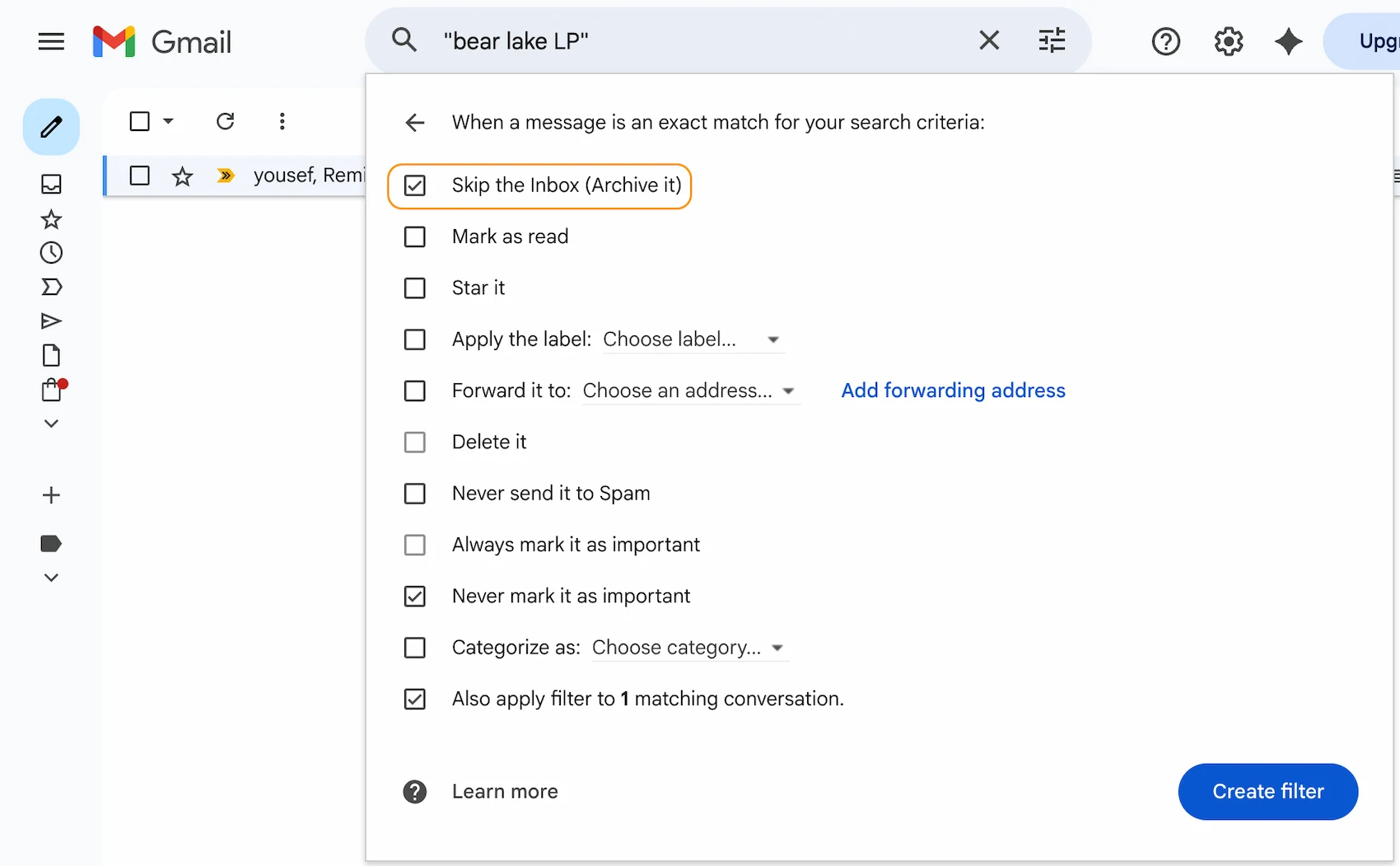
The first filter to create is for newsletters and marketing mail. In Gmail Settings, go to Filters and Blocked Addresses, then Create a new filter. In the "From" field, enter newsletter OR unsubscribe. On the next screen, check "Skip the Inbox (Archive it)." Done. Most promotional emails will now route around you entirely.
Build out filters for receipts (from: receipt OR order OR invoice), GitHub notifications, calendar invites, and any recurring automated sender you don't need to see in real time. The goal is simple: only emails written by a real human, addressed specifically to you, should land in your inbox. Everything else can wait in archive.
The keyboard-only processing habit
Once your inbox is clean and your filters are in place, the daily practice is what holds the system together. The key shift: process your inbox without touching your mouse. This sounds small. It isn't.
Open Gmail. Press J to advance to the first email. Read it — or don't, if the subject makes the action obvious. Then decide: archive it, reply, delete it, or star it for follow-up. Press J again to advance to the next one. With twenty emails, this routine takes about ninety seconds. That's not an exaggeration.
The speed comes from the fact that your hands never leave the keyboard, and your eyes never have to re-orient to a cursor. Decisions happen faster when the only input is the email in front of you.
- J / K Navigate to the next or previous email
- E Archive — done, out of sight, still findable
- R Reply inline, without opening a new compose window
- # Delete — for things that truly don't need to exist
- S Star — flag for follow-up, review once a day
- U Back to inbox list without losing your place
Enable keyboard shortcuts in Gmail settings if you haven't already — they're off by default. Once on, they stay on across sessions.
The visual environment matters more than you think
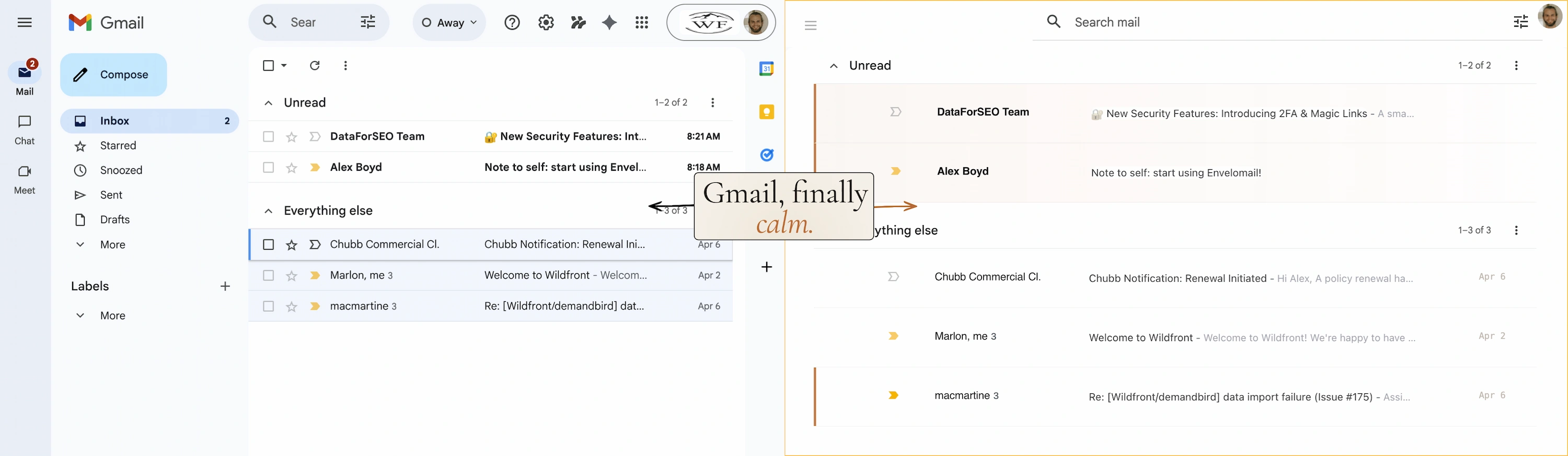
Here's the part nobody talks about: keyboard-only processing is dramatically harder when there's visual noise competing for your attention. When your peripheral vision registers the Google Chat panel, the Meet button, the toolbar row of icons, the label list on the left, and the occasional ad for Google Workspace, your brain has to actively suppress each of those inputs every single time you look at the screen. Suppression isn't free. It takes effort, and it adds up.
There's research on this — the concept of "visual clutter" reducing working memory capacity. But you don't need the research to feel it. You know the difference between reading something in a quiet room versus a busy café. The inbox environment is the same principle.
This is the gap that Envelomail fills. It removes all of it — the side panels, the toolbars, the sidebar navigation — and replaces the Gmail interface with a single, focused email list. Same inbox, same emails, same keyboard shortcuts. But the surrounding noise is gone.
What to do with the remaining two percent
Not every email gets archived immediately. Some things require action on a specific day — an invoice to pay on Friday, a form to return by next Thursday, a follow-up to send after a meeting happens. Archiving those emails would mean forgetting them.
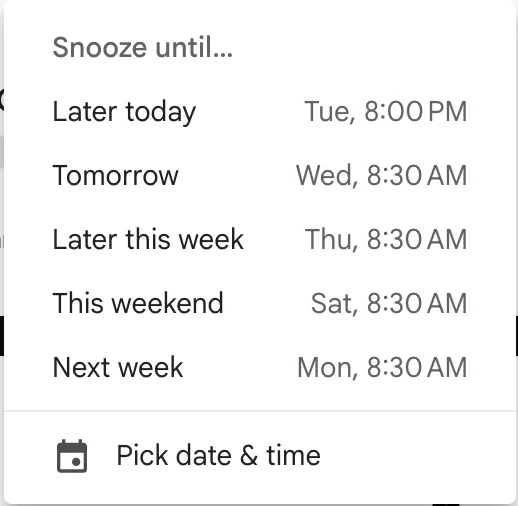
For action items, use Gmail's built-in snooze feature. Right-click any email in your inbox and choose Snooze. Pick a time — later today, tomorrow morning, next week — and the email disappears from your inbox until that moment. Envelomail adds an H keyboard shortcut for snooze so you never have to reach for the mouse.
For things that are starred, review them once a day — a single pass through your starred list, usually takes under two minutes. That starred list is your email-derived task list. Keep it short. If something has been starred for more than a week and you haven't acted on it, archive it or snooze it to a realistic date. Don't let stars become a second inbox.
The inbox zero system works best in an environment built for it.
Envelomail gives Gmail the quiet it was always missing — no sidebars, no panels, no visual noise. Just your emails, your keyboard shortcuts, and three minutes a day.
Add to Chrome — it's free