The Problem With Gmail Today
When Gmail launched in 2004, it felt clean. A list of emails, a search bar, a way to compose. That was it. Over the following two decades, Google turned it into something else entirely: a communications hub, a collaboration tool, a gateway to the rest of Google's product suite. And at some point in there, your inbox stopped feeling like a place to get things done and started feeling like a place to manage noise.
The modern Gmail interface arrives with Promotions, Social, and Updates tabs slicing your inbox into fragments. A Meet button sits in the sidebar whether you use Google Meet or not. A Chat panel takes up real estate on the left. A right-side panel bundles in Google Calendar, Tasks, and Keep. A dense toolbar of small icons hovers above every email thread. Each of these features was added with good intentions — and each one, in isolation, is probably useful to someone. Together, they make it harder to simply read your email.
If you're feeling overwhelmed opening Gmail, the interface itself is a significant part of why.
The Built-In Fixes: What Gmail Lets You Do
Google does offer some controls for trimming Gmail back. None of them go far enough, but they're worth knowing. Here's where to look:
- Hide Chat and Meet. Go to Settings → See all settings → Chat and Meet. Set both to "Off." This removes the left sidebar chat panel and the Meet button from your inbox view.
- Disable the extra tabs. Go to Settings → See all settings → Inbox. Under "Inbox type," choose "Default," then uncheck Social, Promotions, Updates, and Forums. Your inbox becomes one unified list again.
- Switch to Compact density. Click the Settings gear in the top right → Display density → Compact. This reduces the row height and fits more emails on screen with less visual padding.
- Collapse the right-side panel. Click the small arrow at the bottom right of the screen to hide the Google Calendar / Tasks / Keep panel. It'll stay collapsed until you click it again.
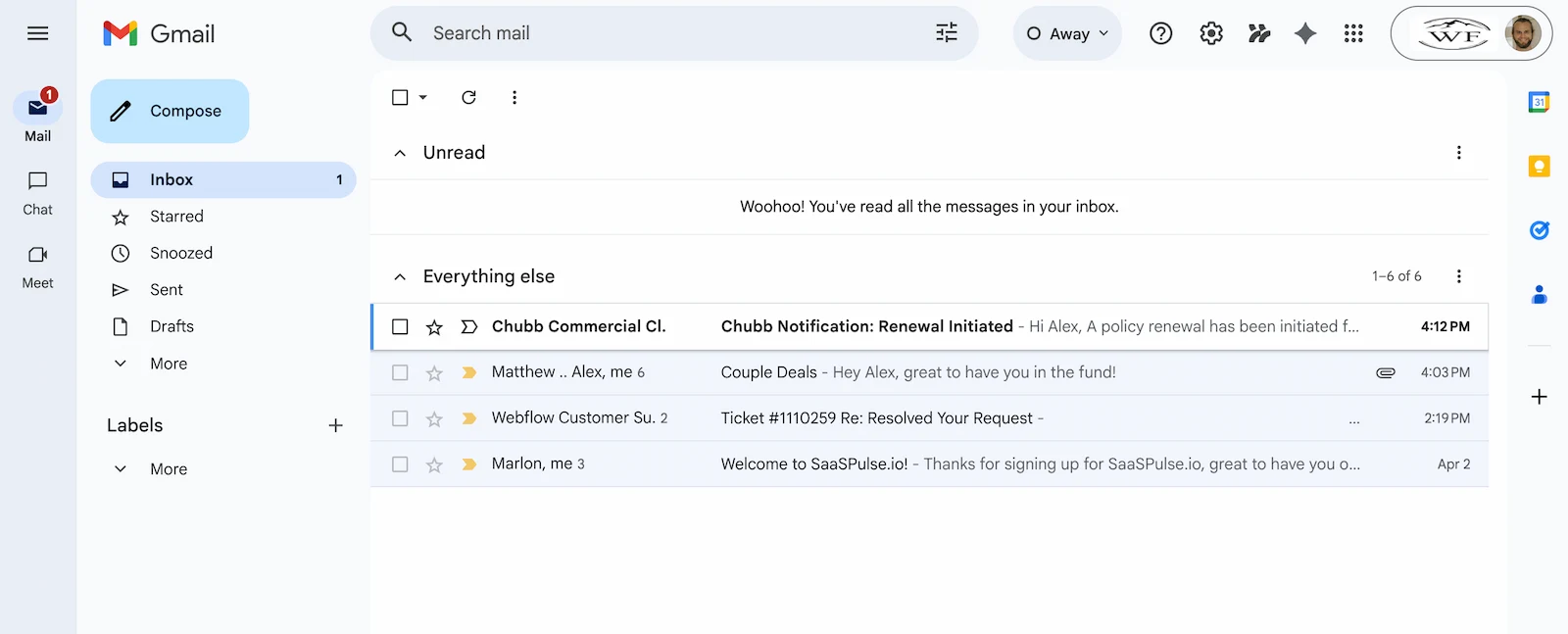
After going through those steps, the inbox genuinely does improve. The tabs are gone, the sidebars are quieter. It starts to resemble something you might actually want to spend time in.
Why the Manual Fixes Aren't Enough
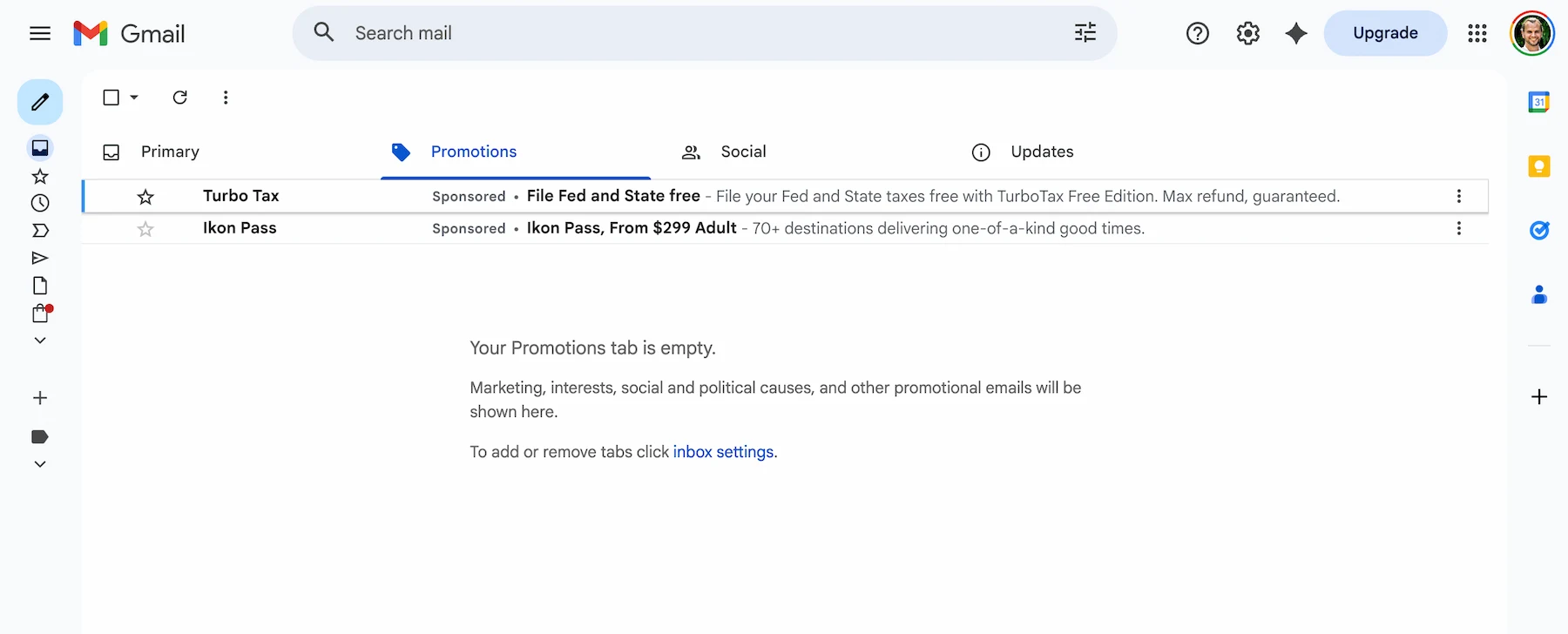
Here's the honest truth: even after disabling every optional panel and tab, Gmail still doesn't feel minimal. What's left is still a lot.
The top navigation bar alone contains nine Google app icons, a Google Account avatar, the search bar — which occupies roughly 40% of the screen's width — and a settings gear. The compose button is large and persistent. The email list toolbar has icons for selecting all, refreshing, and configuring inbox settings, rendered in that slightly flat, slightly ambiguous Google icon style that requires a moment of recognition every time.
This isn't a flaw in Google's design. It's the result of a deliberate philosophy: Gmail is built for discoverability. Every feature should be one click away. The interface is optimized to help you find things you didn't know existed, not to help you focus on the thing in front of you.
If your goal is focus, that's precisely the wrong trade-off.
See what Gmail looks like without the noise
Envelomail is a Chrome extension that gives Gmail a minimal, distraction-free interface — same account, same emails, completely different experience.
Add to Chrome — it's freeWhat a Truly Minimal Gmail Looks Like
This is where Envelomail comes in. Instead of asking you to hunt through settings menus and disable features one by one, it gives Gmail a completely different skin — one that was designed around focus from the start.
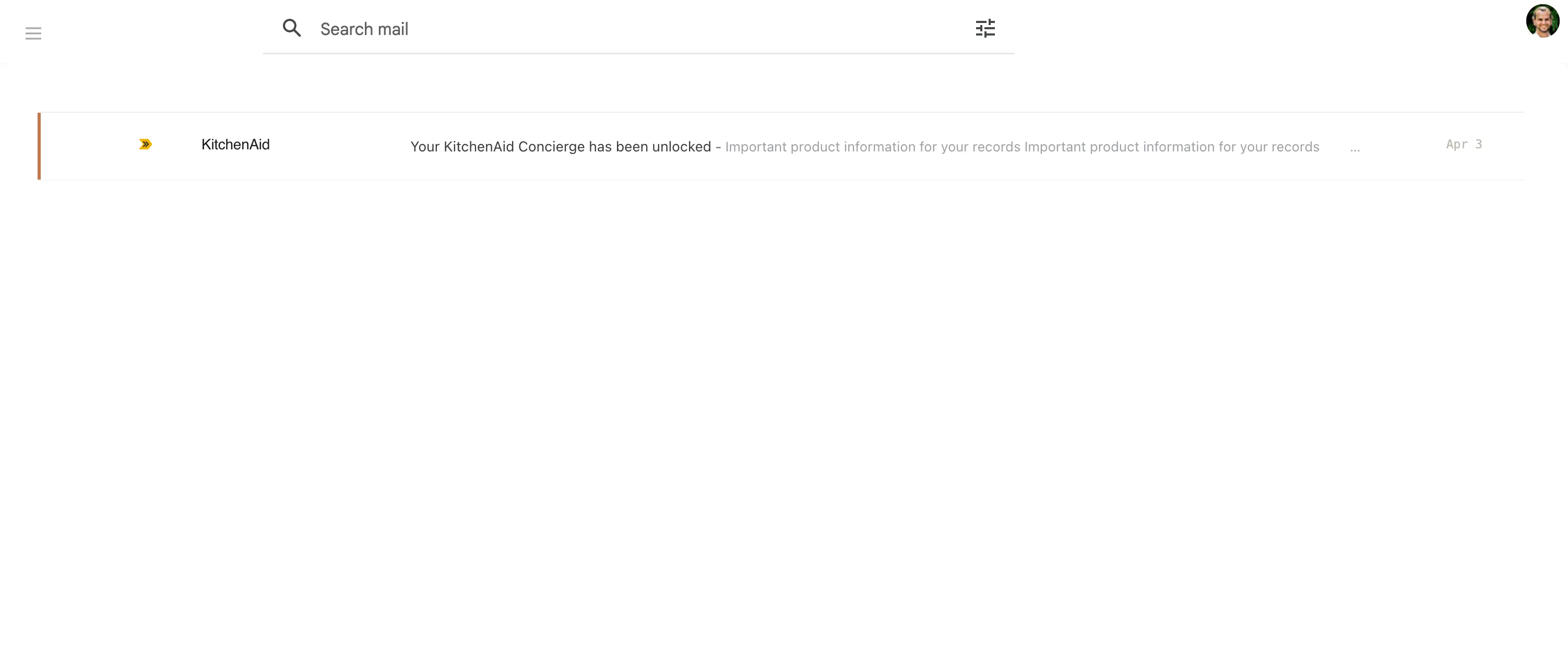
What you see is your email list. That's it. No Google app icon grid in the corner. No search bar that dominates the header. No compose button demanding your attention. No dense toolbar of small icons to decode. Just your inbox, rendered in clean typography on a warm, quiet background, with the kind of spaciousness that lets you actually read the sender names and subject lines without squinting.
It's not that the functionality disappears — you can still search, compose, and navigate. The interface simply stops advertising those options constantly. It assumes you know how to use email. It gets out of the way.
The Keyboard Shortcut Bonus
Something unexpected happens when you remove visual clutter: keyboard navigation starts to feel natural. When there's nothing to click on except what you actually mean to click on, you stop reaching for the mouse as a default.
Gmail's keyboard shortcuts have always been excellent. Most people never discover them because the interface gives you so many other ways to interact. In a minimal view, these five become second nature quickly:
| J K | Move to the next or previous email in the list |
| E | Archive the current email and return to your inbox |
| R | Reply to the open email |
| C | Compose a new email |
| / | Jump to search |
With these five keyboard shortcuts, you can process a full inbox without touching the mouse. That's not a trick — it's just email the way it was meant to work, before the interface got complicated enough to require a guide.
Install Takes Two Seconds
Envelomail is a Chrome extension. There's nothing to configure, no migration to run, no new account to manage. You install it, open Gmail, and the interface is different. Your emails, your labels, your filters — everything stays exactly where it is. You're just looking at it through a quieter window.
If you've made it this far in a guide about simplifying Gmail, you already know this is something you want. The install button is right below.
Pair it with a keyboard-first inbox processing habit and you can reach inbox zero in minutes.