The Complete Gmail
Keyboard Shortcuts Guide
(2026)
Every shortcut, explained — plus 12 power shortcuts most users never discover.
First: enable keyboard shortcuts
Gmail's keyboard shortcuts are disabled by default. Before any of the keys below will work, you need to turn them on. It takes about 30 seconds, and you'll only ever need to do it once.
See all settings.
Keyboard shortcuts on.

Pro tip: After saving, press Shift + ? anywhere in Gmail to see a full shortcut overlay. It's a handy in-app cheat sheet — though the one below is more organized.
Navigation shortcuts
Move through your inbox without lifting your hands from the keyboard.
| Key | What it does |
|---|---|
J |
Next email (move down the list) |
K |
Previous email (move up the list) |
OorEnter |
Open the selected email |
U |
Back to inbox (from an open email) |
[ |
Archive and go to previous email |
] |
Archive and go to next email |
{ |
Mute thread and go to previous |
} |
Mute thread and go to next |
Email action shortcuts
The keys that actually do things to your messages.
| Key | What it does |
|---|---|
E |
Archive (removes from inbox, keeps the email) |
# |
Delete |
! |
Mark as spam |
R |
Reply to sender |
A |
Reply all |
F |
Forward |
Shift+U |
Mark as unread |
Shift+I |
Mark as read |
S |
Star / unstar |
L |
Apply a label |
V |
Move to folder |
. |
More actions menu |
Compose shortcuts
Open, send, and close email composition without reaching for the mouse.
| Key | What it does |
|---|---|
C |
Compose a new email |
D |
Compose in a new full-screen window |
TabthenEnter |
Send (when composing) |
Ctrl+Enter |
Send (Windows) / ⌘ + Enter on Mac |
Esc |
Close compose window (saves as draft) |
Search & folder navigation
Jump directly to any part of Gmail. The G key is a "go to" prefix — press it, release, then press the second key.
| Key | What it does |
|---|---|
/ |
Focus the search bar |
GthenI |
Go to Inbox |
GthenS |
Go to Starred |
GthenT |
Go to Sent |
GthenD |
Go to Drafts |
GthenA |
Go to All Mail |
Selection shortcuts
Select multiple emails at once. The * key works like a prefix — press it, release, then press the second key.
| Key | What it does |
|---|---|
*thenA |
Select all conversations |
*thenN |
Deselect all |
*thenR |
Select read conversations |
*thenU |
Select unread conversations |
*thenS |
Select starred conversations |
*thenT |
Select unstarred conversations |
X |
Toggle select / deselect a single conversation |
The Gmail archive shortcut: E
The archive shortcut deserves its own section because it's the single most important key for anyone trying to reach inbox zero. Pressing E while viewing an email does three things instantly: it removes the message from your inbox, preserves it in All Mail so you never lose it, and automatically advances to the next conversation. No clicking, no confirmation dialog, no friction.
The real power reveals itself when you chain it with J and K. Open your inbox, press J to step into the first email, read it, then either R to reply or E to archive. The view immediately jumps to the next email. Repeat. You can process a full inbox in a fraction of the time it would take with mouse clicks alone. This is the mechanical backbone of every inbox zero workflow — and the reason Gmail's keyboard shortcuts are worth learning at all.
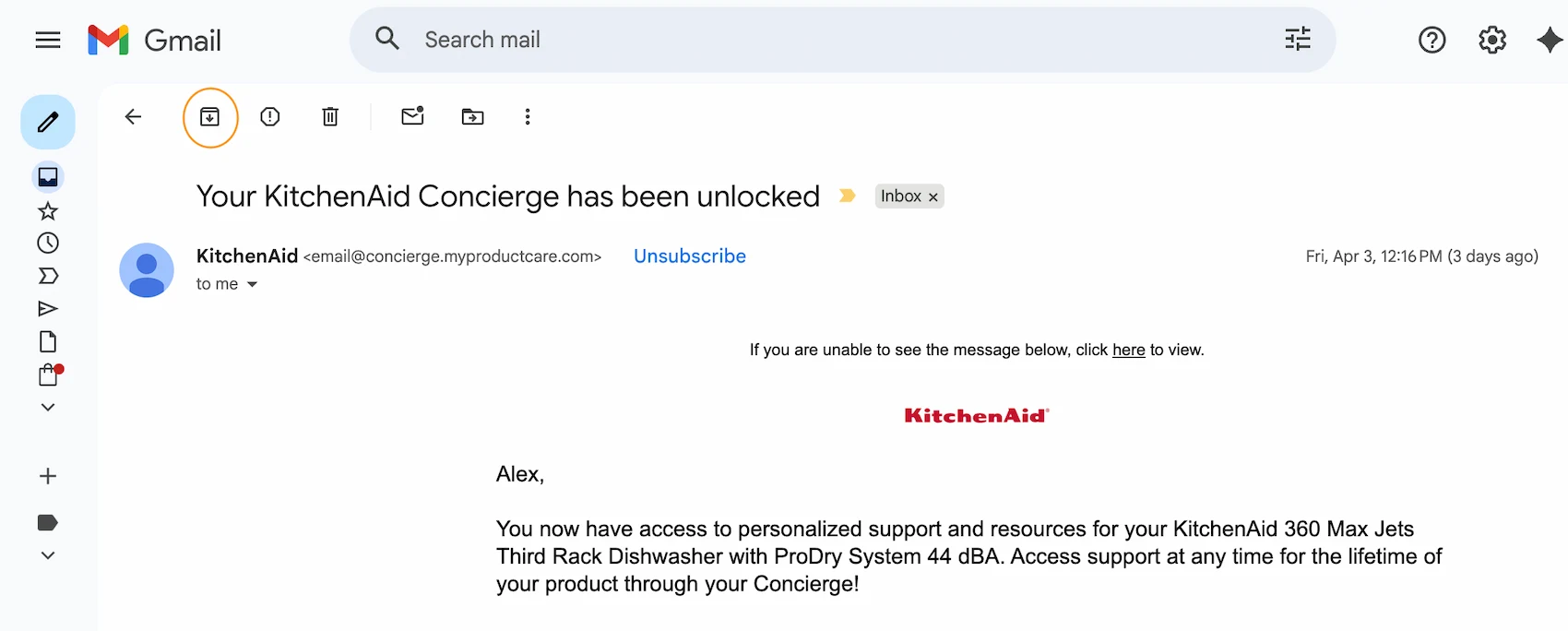
Archived emails are never deleted. They live in All Mail and are fully searchable. Think of archiving as "I'm done with this — file it away." The E key is your fastest path to a clean inbox.
Gmail shortcuts feel better in a cleaner inbox.
Envelomail strips the clutter so the shortcuts actually shine. Less visual noise, faster navigation.
Level up: Envelomail's enhanced shortcuts
Once you've internalized Gmail's built-in shortcuts, you'll notice a ceiling: the interface itself still gets in the way. Ads in the sidebar, promotional tabs, animated banners, and a dozen visual elements all compete for attention. Envelomail removes all of that and renders your email in a focused, distraction-free interface built for keyboard-first reading.
The core Gmail shortcuts — J, K, E, R, F — work exactly the same way in Envelomail. But the experience feels more precise, because there's nothing competing for your focus. And Envelomail adds three shortcuts Gmail doesn't have:
Snooze
Press H to snooze the current email and pick it back up later — without breaking your flow or switching to the mouse.
Focus mode
Toggle full distraction-free reading mode with a single chord. Everything except the email content fades away.
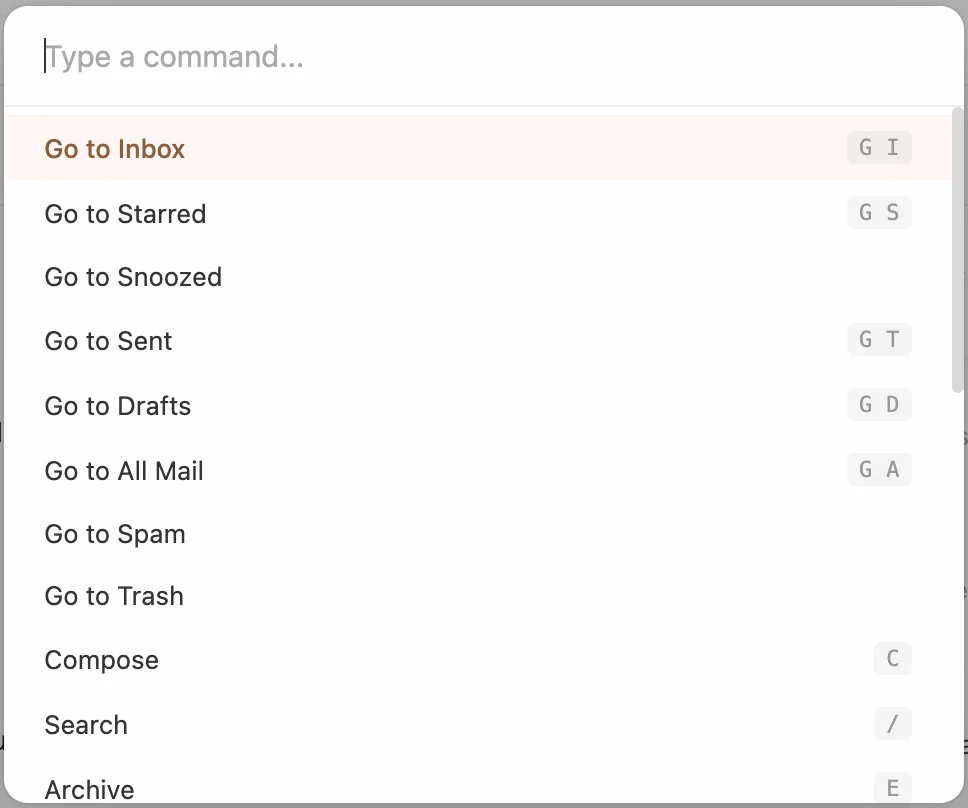
Shortcut help overlay
Opens a clean shortcut reference card — visible at any time, right inside the interface. No need to Google it.
Your inbox. Keyboard-first.
Envelomail is a Chrome extension that gives your Gmail the quiet, focused interface these shortcuts deserve.
Add to Chrome — it's freeNo credit card required · Installs in 30 seconds