• Gmail Tips & Tricks •
21 Gmail Tips That
Power Users Actually Use
Most people use 3 or 4 of these. The rest are sitting in settings, unused.
Gmail is the most feature-rich email client in the world, and most of it goes untouched. These 21 tips cover shortcuts, search, filters, and one change to your environment that ties them all together. Work through all four clusters and you'll process email faster, find anything in seconds, and spend less time in your inbox overall.
Speed & Navigation
1. Enable keyboard shortcuts
Head to Settings → General → Keyboard shortcuts → On. This is the most important toggle in Gmail — every other tip in this cluster depends on it being enabled. Without it, none of the key-based navigation below will work.
Once enabled, save your settings and reload. It takes effect immediately and changes how you interact with your inbox permanently.
2. Navigate with J, K, and E
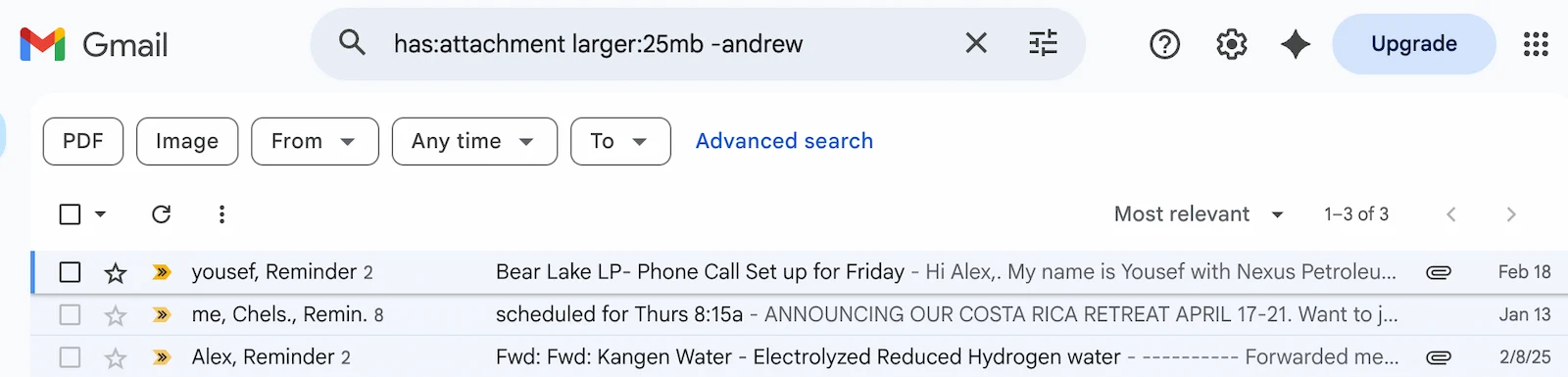
Press J to move down to the next email, K to move up to the previous one — all without touching your mouse. Once you're on an email you want to clear, press E to archive it.
This trio alone cuts inbox processing time in half. You can move through an entire inbox and archive as you go without reaching for the trackpad once.
3. Jump to search with /
Press / from anywhere in Gmail and your cursor jumps directly to the search bar. No mouse needed, no clicking around. Type your query and hit Enter.
Combined with the search operators in the next cluster, this becomes one of the fastest ways to find any email ever sent to you.
4. "Go to" shortcuts with G
Press G then I to go to your Inbox. Press G then S to jump to Starred. Press G then D to open Drafts. These two-key sequences work from anywhere in Gmail and replace clicking the left sidebar entirely.
Think of G as "go to" — it's a prefix that unlocks a whole layer of navigation shortcuts you can use without looking up.
5. Send with Tab + Enter
When composing an email, press Tab then Enter to send — your focus moves to the Send button and activates it. On Mac you can also use ⌘Enter, or CtrlEnter on Windows.
Pick one of these and make it muscle memory. Reaching for the mouse to click Send is one of those small friction points that adds up over dozens of emails a day.
6. See all shortcuts with ?
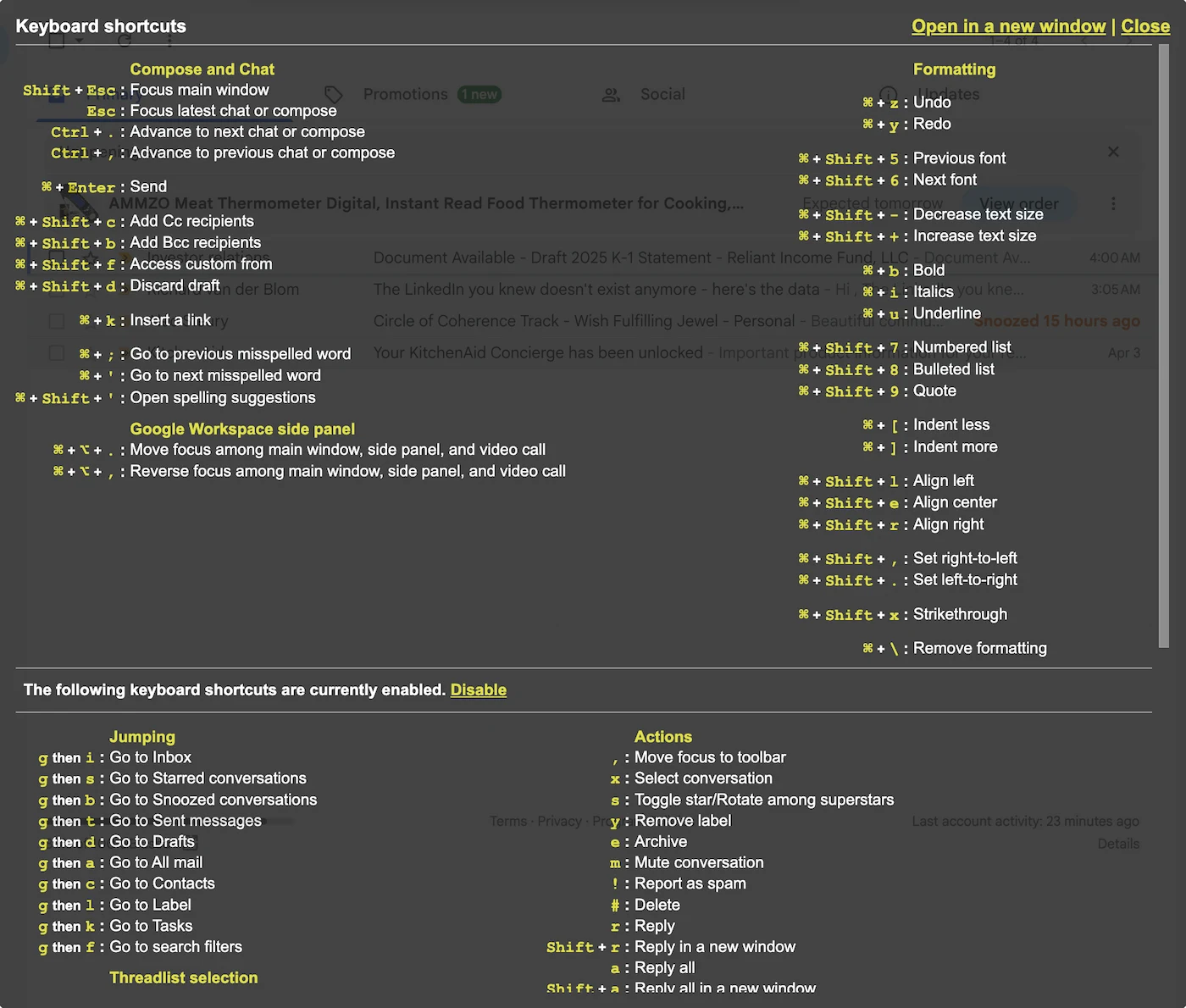
Press ? at any time in Gmail to open the full keyboard shortcut overlay. It shows every available shortcut organized into categories — Navigation, Actions, Jumping, and more — in a clean two-column layout.
Bookmark this tip mentally. Whenever you think "there must be a shortcut for this," press ? and find out. For a full breakdown of every shortcut organized by category, see our complete shortcuts guide.
Search Like a Pro
7. Search by sender
Type from:[email protected] in the search bar to instantly pull up every email from a specific sender. You can also use partial names — from:alex — if you don't know the full address.
This is especially useful for finding that one email from a specific person buried months back, without scrolling through your entire inbox history.
8. Find all emails with attachments
Search has:attachment to see every email that includes a file. You can narrow it down with has:attachment filename:pdf to find only emails with PDF attachments, or combine it with a sender search like from:[email protected] has:attachment.
Useful for tracking down contracts, invoices, or design files you know someone sent you but can't remember when.
9. Filter to unread only
Search is:unread to see only emails you haven't opened. Pair it with in:inbox is:unread to show unread inbox emails specifically, or is:unread from:[email protected] to find unread messages from someone in particular.
This operator is the fastest way to get a true picture of what actually needs your attention right now.
10. Find large emails eating your storage
Search larger:5mb to find every email over 5 megabytes. You can adjust the threshold — larger:10mb, larger:25mb — to find the biggest offenders first.
Gmail gives you 15GB of storage shared across all Google services. Running this search every few months and deleting old attachment-heavy threads is one of the easiest ways to reclaim space without paying for more storage.
11. Clean out old emails by date
Search before:2023/01/01 in:inbox to find every inbox email older than a specific date. You can select all results and archive or delete them in bulk — Gmail will ask if you want to select all conversations matching the search, not just the ones visible on screen.
Combine with is:read to target only emails you've already opened: before:2023/01/01 in:inbox is:read.
Already know these? Envelomail goes further.
All the keyboard shortcuts, plus a distraction-free Gmail interface built around them. No new app — just a better inbox.
Filters & Automation
12. Auto-archive newsletters
Search for unsubscribe in Gmail, then click the dropdown arrow in the search bar and select "Create filter." Check "Skip the Inbox" and "Mark as read," then click Create filter.
Every email containing the word "unsubscribe" — which covers nearly every marketing email and newsletter — will now bypass your inbox entirely. You can still find them later via search or a label, but they won't clog your primary view.
13. Use multiple inboxes
Go to Settings → Inbox type → Multiple inboxes. This lets you display a secondary panel alongside your main inbox — filtered by starred emails, a specific label, or any search query you define. It's a lightweight alternative to tabs that keeps everything visible at once.
A common setup: one panel for starred emails (important threads to return to), and one for emails you need to respond to today.
14. Auto-label emails from specific senders
Create a filter for from:[email protected], check "Apply the label," and choose or create a label like "Newsletters." Every email from that sender lands in its own labeled bucket instantly, without any manual sorting on your part.
Labels in Gmail work like tags — one email can have multiple labels, and each label acts as its own view. This is the core of any solid Gmail filing system.
15. The + tag trick for pre-set filters
Gmail ignores everything after a + in your email address — so [email protected] and [email protected] both deliver to you. Create a filter for to:[email protected] before you even sign up for a service, and every receipt goes straight to a label automatically.
Use +newsletters, +shopping, +signups — whatever categorization system makes sense for how you work. It also makes it easy to see which services have sold your email address.
16. Enable Send & Archive
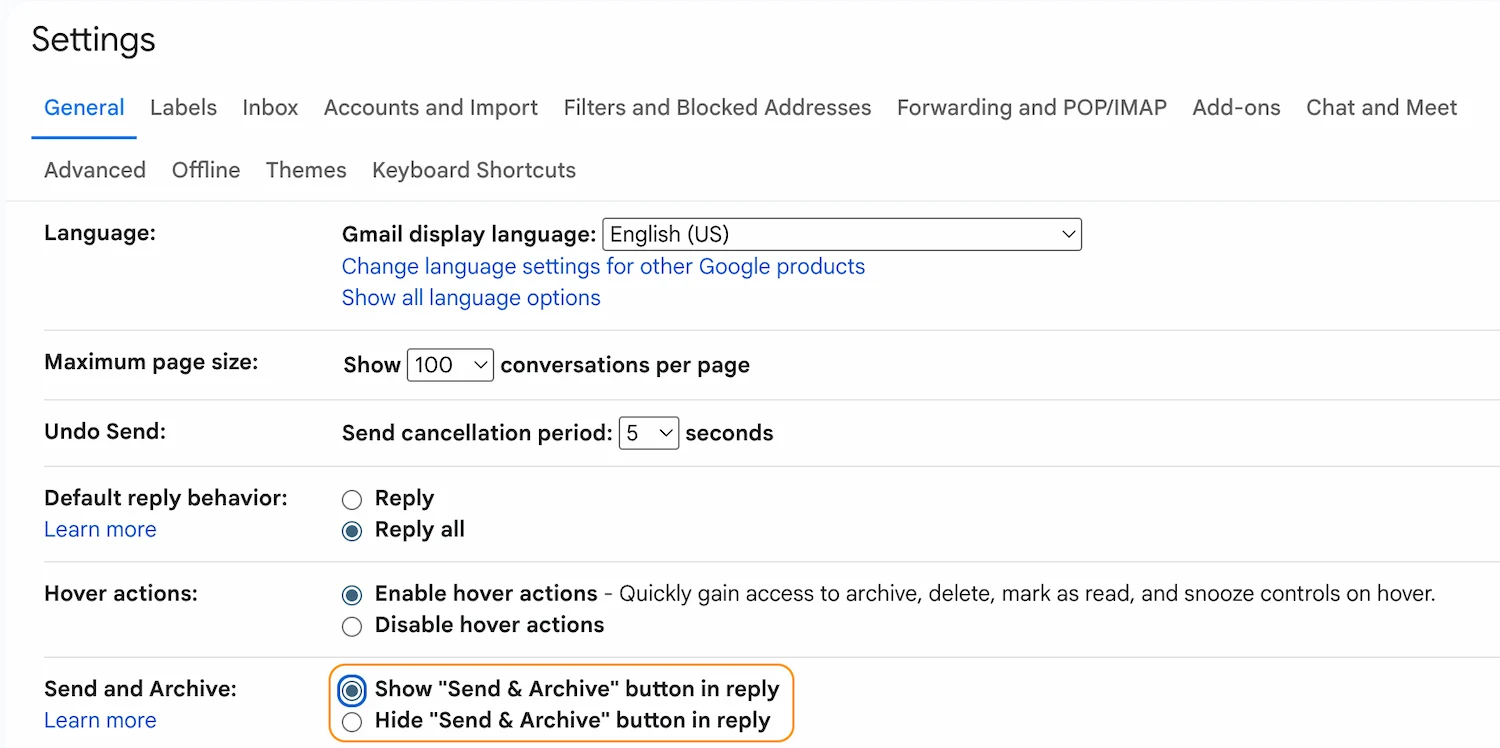
Go to Settings → General → Send and Archive → Show "Send & Archive" button in reply. Once enabled, a new button appears next to Send in reply threads. Clicking it sends your reply and archives the thread in a single action.
For anyone who follows inbox zero principles or processes replies in bulk, this removes an entire step from the workflow. Reply, done, gone.
The Environment
17. Disable tabs you don't use
Go to Settings → Inbox → Inbox type → Default, then uncheck Social, Updates, Forums, and Promotions. All of those emails will fold back into your primary inbox, visible as a single stream instead of scattered across five tabs.
Fewer buckets means less cognitive overhead. You don't have to wonder what's hiding in the Updates tab — everything is in one place, and filters handle the sorting you actually care about.
18. Turn off Google Chat and Meet
Go to Settings → Chat and Meet → Chat: Off, Meet: Hide the Meet section in the main menu. Both of these were added to Gmail over the years and occupy permanent sidebar real estate most people never use.
Turning them off instantly reduces the left sidebar and removes two things competing for your attention every time you open Gmail. If you need either, they exist as separate apps.
19. Switch to Compact density
Click the gear icon in the top right and select "Display density" → Compact. This reduces the row height of each email in your inbox, showing significantly more emails on screen without scrolling.
The Default view wastes vertical space with padding that adds nothing. Compact is how people who live in their inbox prefer it — more information per screen, less visual noise between rows.
20. Collapse the right-side info panel
Look for the small arrow icon at the bottom right of the Gmail window — clicking it collapses the Calendar, Tasks, and Keep widgets panel that occupies the right side of the interface. It folds away completely and your inbox expands to fill the space.
If you use any of those tools regularly, keep the panel. If they're just there by default, collapsing them gives you back a meaningful chunk of screen width.
21. Remove the interface itself
The last tip most people skip: even after all of the above, Gmail's top bar, compose button, and search bar are still always there. The interface is designed for the broadest possible audience, not for someone who already knows every shortcut and wants to move fast.
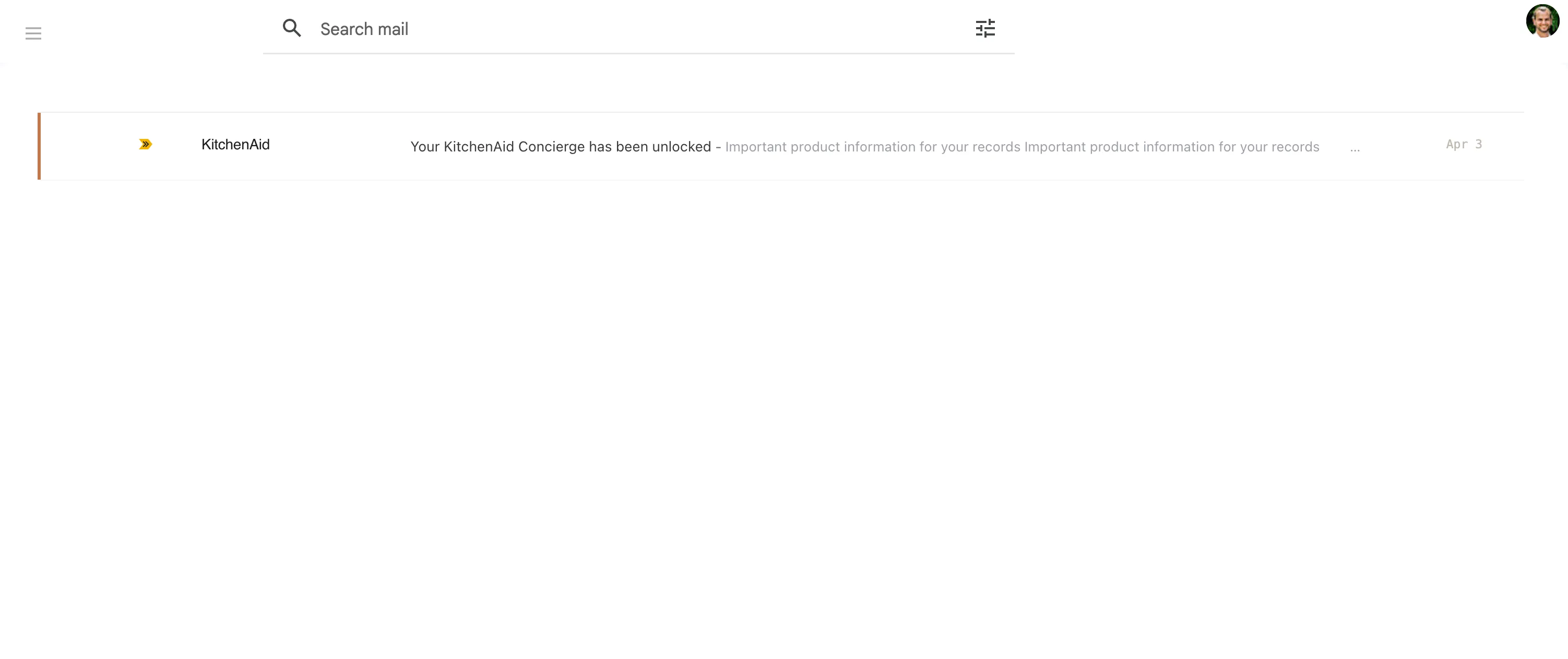
Envelomail removes them entirely — simplify Gmail down to a minimal inbox designed around keyboard-first email, with a cream background, clean email list, and none of the visual scaffolding Gmail defaults to. It takes 2 seconds to install and requires no new account — it layers on top of the Gmail you already use.
The inbox you
actually want
Envelomail gives you all 21 of these plus a distraction-free Gmail interface built around them. Install in seconds, no new account needed.